Fixed-layout preflight
How to validate a fixed-layout EPUB
A validator catches structural errors, but fixed-layout quality also requires visual inspection of every page, orientation and magnification path.
Validation order
Structure first, rendering second
Run EPUBCheck, resolve package and XHTML errors, confirm the fixed-layout metadata and viewport on every page, then preview the rebuilt file across the actual reading systems and screen shapes you support.
1. Inspect the EPUB container
mimetypemust identifyapplication/epub+zip.META-INF/container.xmlmust resolve to the real OPF package.- All XML-based resources must be well formed and UTF-8 encoded.
2. Check the package metadata
Confirm the title, language, unique identifier and modification date. For EPUB 3 fixed layout, verify:
<meta property="rendition:layout">pre-paginated</meta>Review orientation, spread and page-progression preferences only when the content needs them. Do not use these properties to hide an incorrect spine order.
3. Check every fixed XHTML page
Each page must have a single valid viewport with both width and height. Compare those dimensions with the page wrapper and the design source. EPUBCheck identifies absent, malformed, duplicated or incomplete viewport declarations with the HTM-046 through HTM-060 family of messages.
4. Resolve every packaged resource
Verify that images, fonts, stylesheets and XHTML documents exist, appear in the manifest with the correct media type and are referenced with exact case-sensitive paths. Open each image to catch corrupted headers. Confirm font files are not empty and that fallbacks do not change critical line breaks.
5. Read the spine as a page list
Walk through the spine in order. Each itemref should point to one intended page, and page-spread properties should match the reading direction. Look for duplicate, skipped or reversed pages before testing synthetic spreads.
6. Validate navigation and accessibility
The navigation document should reach the correct page for every entry. Preserve real text where possible, add meaningful alternative text to informative images and test reading order. A visually perfect page can still be unusable when all words are flattened into an undescribed image.
7. Run visual QA at several sizes
- Flip through every page in portrait and landscape when both are allowed.
- Check that text stays inside its intended boxes.
- Look for clipping, white seams, unexpected margins and letterboxing.
- Test the smallest screen you claim to support.
- Exercise pop-ups or panel navigation in the correct order.
- Inspect image sharpness at normal view and magnification.
8. Preview the Kindle conversion separately
For a KDP book, use Kindle Previewer after EPUBCheck. Amazon’s QA guidance also recommends reviewing every page and testing fixed-layout magnification. If you are testing a personal document through Send to Kindle, record that result separately because it may not match retail features or quality.
9. Revalidate the final archive
Run the validator on the exact file you plan to distribute, not an earlier export. A packaging step can reintroduce stale files, wrong compression order or missing assets after the content itself was repaired.
Start with package diagnostics
FixMyEPUB checks common container, XML, manifest, spine and cover problems locally. Fixed page geometry and Kindle interaction markup still require specialist editing and previewing.
Check the EPUB privately →Related guides
- Repair fixed-layout EPUB problems
- Test a fixed-layout EPUB for Kindle
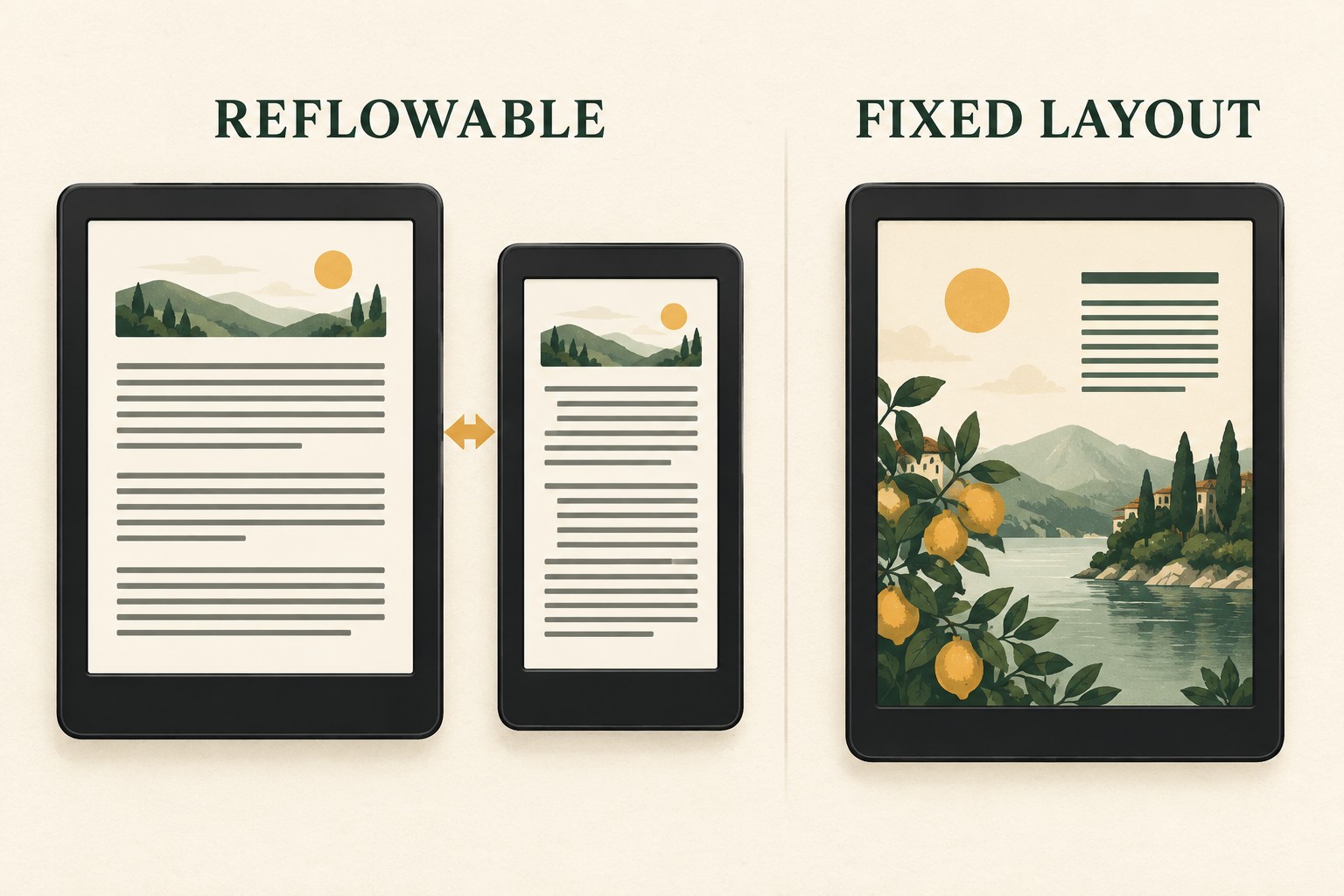
- Compare fixed layout and reflowable EPUB