Fixed-layout repair guide
How to fix layout EPUB problems safely
If you searched for “fix layout EPUB,” the standard term is fixed-layout EPUB or FXL. Repair starts by separating a broken package from a page-design problem.
Quick answer
Check these four layers first
Confirm the package declares rendition:layout as pre-paginated, every fixed XHTML page has one valid width-and-height viewport, every spine item resolves to a declared resource, and the CSS positions content inside the same design canvas. Validate before and after each change.
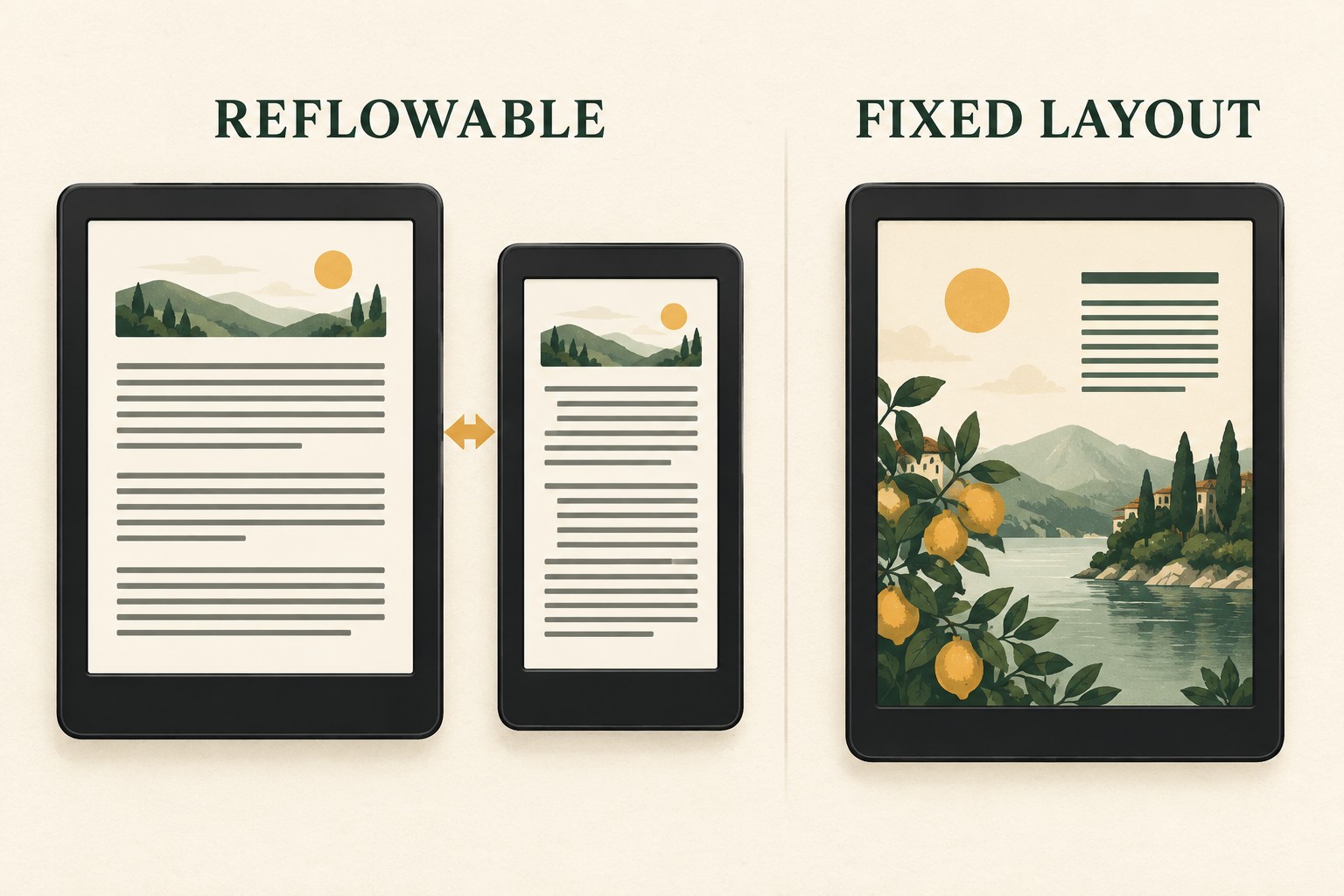
1. Verify that the book is really fixed layout
Open the OPF package document and look for the EPUB 3 rendition property:
<meta property="rendition:layout">pre-paginated</meta>The value contains a hyphen. A missing or misspelled value can make a reading system treat the publication as reflowable. Do not add the property merely to stop text moving: a real fixed-layout book also needs page dimensions and page-specific styling.
2. Repair page viewport metadata
Each XHTML fixed-layout page needs a viewport that defines its initial containing block. A typical declaration is:
<meta name="viewport" content="width=1600,height=2560" />Both dimensions must be positive, appear once, and match the canvas used by the page CSS. EPUBCheck reports missing viewports as HTM-046 and malformed values as HTM-047. If page art was designed at 1600 × 2560 but the viewport says 800 × 600, scaling and clipping are expected.
3. Resolve the manifest and spine before touching CSS
The manifest declares every XHTML page, image, font and stylesheet. The spine supplies the reading order. Check that each itemref points to an existing manifest ID, filename case matches exactly, media types match the real files and relative paths resolve from the referencing document. Missing resources can look like a layout bug even when the CSS is correct.
4. Keep the design canvas internally consistent
Use one coordinate system for the viewport, page wrapper and positioned elements. Remove browser-default margins with a deliberate reset. Check for content extending beyond the canvas, negative offsets that hide text, and absolute positions copied from a different page size. Embedded fonts must be present and licensed, because a fallback font can change line breaks and overflow.
5. Treat spreads and orientation as preferences, not repairs
rendition:spread, rendition:orientation and page-spread properties influence presentation, but they do not repair missing pages or incorrect dimensions. Test portrait and landscape separately. A reading system may scale or letterbox a page when its aspect ratio differs from the device.
6. Rebuild a new copy and validate it
- Keep the original EPUB unchanged.
- Make one class of correction at a time.
- Rebuild the ZIP container with the required EPUB structure.
- Run EPUBCheck and resolve every error.
- Open the result in at least one standards-based reader.
- For Kindle publishing, inspect it in Kindle Previewer and flip through every page.
What FixMyEPUB can and cannot repair
FixMyEPUB checks general EPUB packaging, XML, manifest, spine and cover references. It does not rewrite fixed-layout page geometry, create region-magnification pop-ups or convert a reflowable book into FXL. For those jobs, return to the source layout or use an EPUB editor, then validate the exported copy.
Is the problem packaging rather than page design?
Run the private browser check to find missing package, manifest, spine, XML and cover references before rebuilding the layout.
Check the EPUB privately →Continue the fixed-layout checklist
- Validate a fixed-layout EPUB step by step
- Prepare a fixed-layout EPUB for Kindle
- Choose fixed layout or reflowable EPUB