PDF conversion
How to create a fixed-layout EPUB from PDF
A PDF is a visual source, not a finished EPUB package. First choose the distribution format; then rebuild pages, text, navigation and accessibility deliberately.
Choose before converting
EPUB and Print Replica are different outputs
For broad EPUB distribution, rebuild the PDF as EPUB 3 fixed layout. For a KDP title that must mirror the print pages exactly, Kindle Create can turn a PDF into a Print Replica KPF—but that is not an EPUB and has different device and feature limits.
1. Decide whether fixed layout is necessary
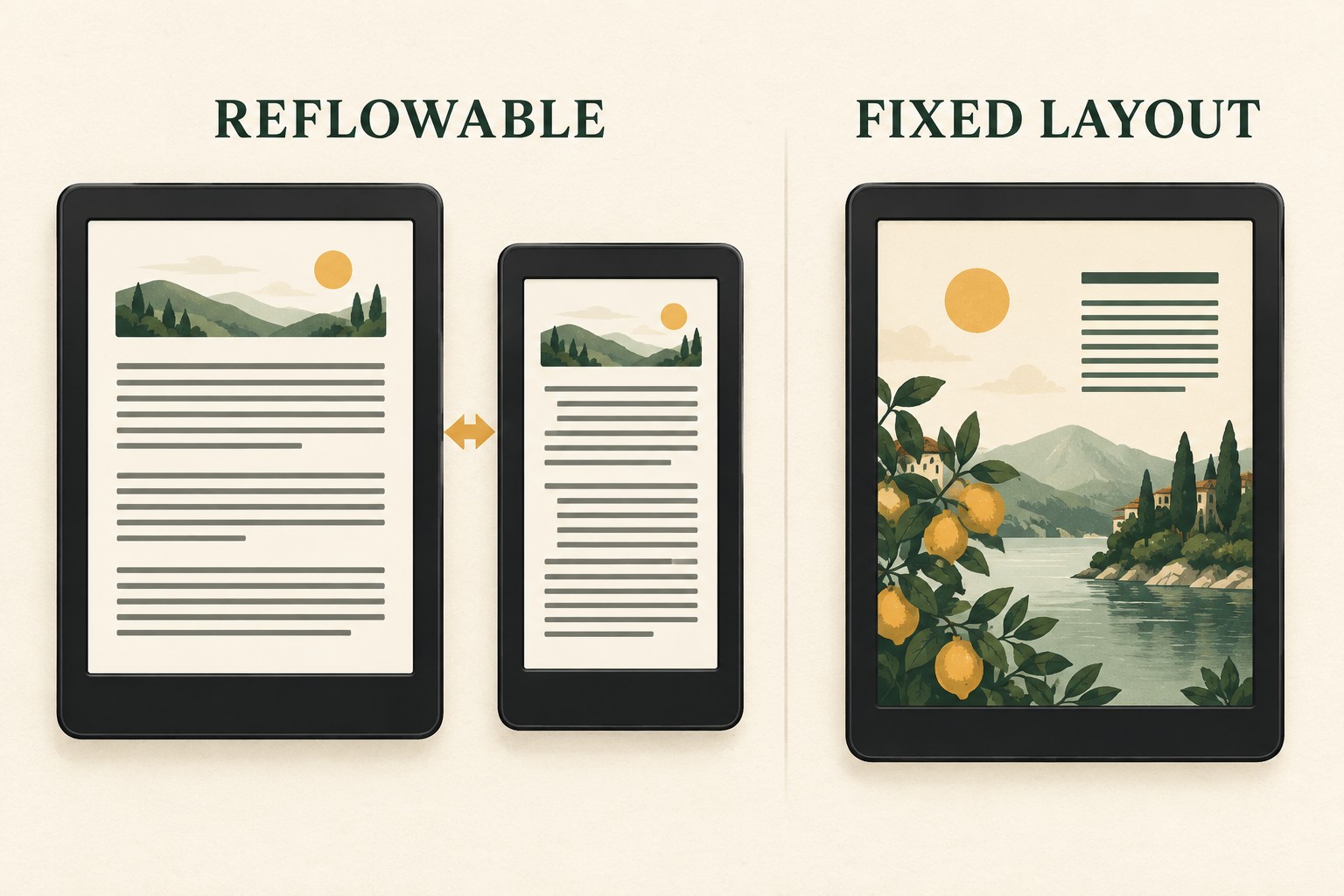
If the PDF is mostly novels, essays or other linear prose, extract and clean the text into reflowable EPUB instead. Fixed layout is appropriate when page composition carries meaning: illustrated children’s books, comics, art books and positioned learning content.
2. Audit the PDF source
- Record page dimensions and crop boxes.
- Check whether text is selectable or flattened into images.
- Inventory fonts, transparency, links and reading order.
- Identify spreads, blank pages and front matter.
OCR can recover text from image-only pages, but it must be proofread. Do not ship invisible OCR text with the wrong reading order merely to claim accessibility.
3. Choose the right production path
| Goal | Best starting path |
|---|---|
| General EPUB stores and apps | Rebuild as EPUB 3 fixed layout with XHTML pages, CSS and a standard package. |
| KDP title matching a print PDF | Consider Kindle Create Print Replica; export KPF for KDP, not EPUB. |
| Text-heavy book | Convert to reflowable EPUB and restyle, rather than preserving PDF coordinates. |
4. Rebuild one page at a time
Create one XHTML content document per intended page. Use the PDF page size as the viewport aspect ratio, optimize background artwork, and preserve important text as actual HTML when practical. Add links and alt text in the content layer instead of relying on the PDF annotation model.
5. Assemble package and reading order
Declare rendition:layout=pre-paginated, list all pages and assets in the manifest, place XHTML pages in spine order, and define navigation. Check left/right page placement separately from simple sequence.
6. Validate more than appearance
Run EPUBCheck, then test the smallest supported screen, zoom behavior, text clarity, page turns, navigation and accessibility. A page screenshot can look correct while remaining unreadable, oversized or impossible to navigate.
Build the EPUB scaffolding
Generate the package metadata, XHTML viewport and CSS canvas for the dimensions you measured.
Open the fixed-layout generator →