Processing delay guide
EPUB stuck processing on Send to Kindle?
Use seven checks to separate a temporary Amazon delay from an account, delivery or document-specific failure—before another upload creates duplicates.
Quick answer
What should you do when Send to Kindle is stuck processing?
Keep one copy in the queue, confirm the Amazon account and connection, then test a known-good EPUB. If only one book keeps stalling or later fails, inspect that EPUB before sending it again.
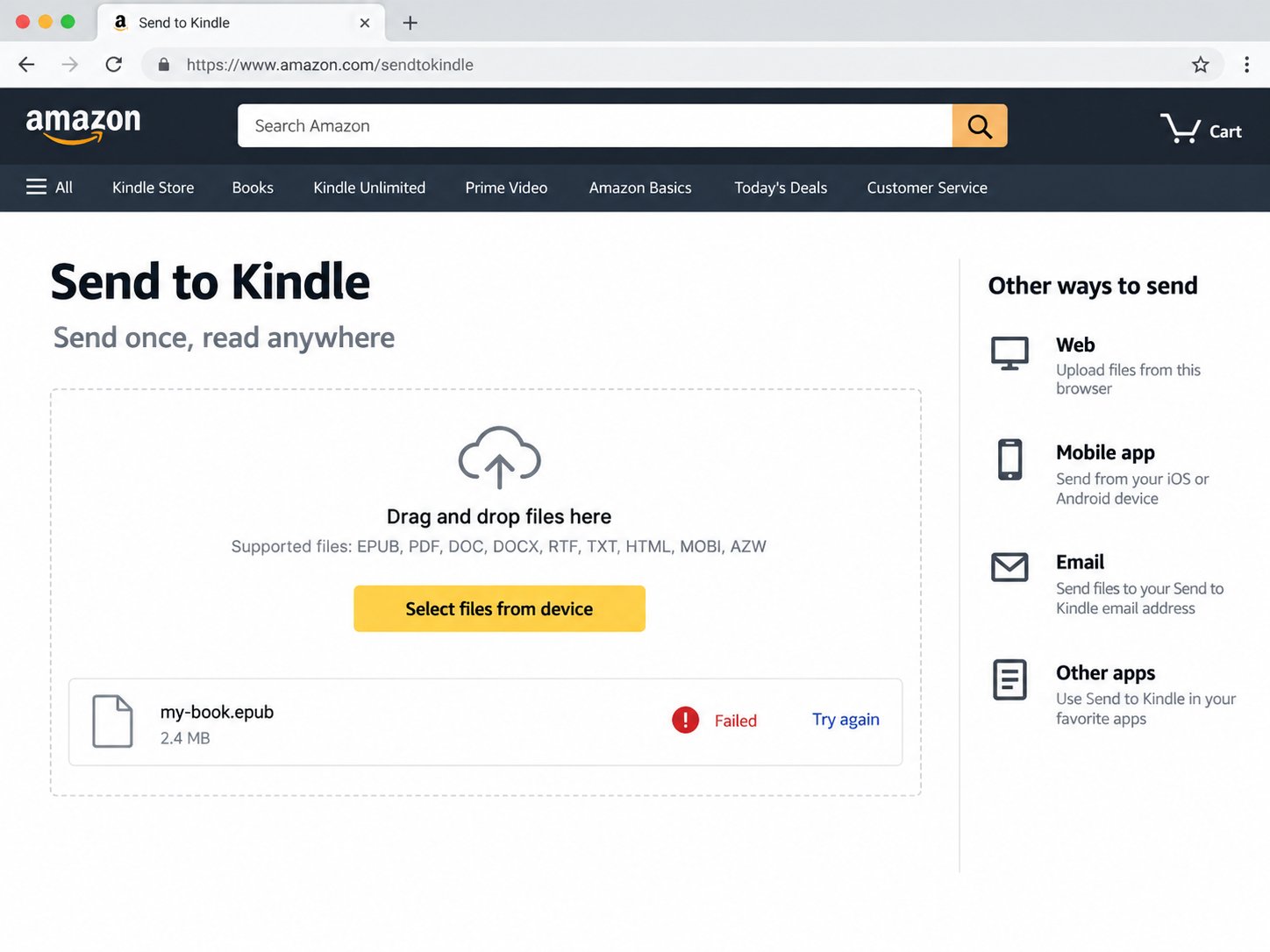
Do not create a queue of duplicates
Repeatedly uploading the same EPUB can produce several similar library entries, rejection emails or cached covers. Keep the first attempt, note the time and filename, and wait for an explicit success or failure before creating another test.
Compare with a small known-good EPUB
If the first item remains unresolved, send one small EPUB that has worked before. If both are delayed, the service, account or network path is more likely than the original book. If the control arrives while the target file remains stuck or later fails, inspect the target EPUB.
Check the route and account
For web upload, refresh the Send to Kindle page and confirm you are still signed in. For email, check the destination address, approved sender list and any bounce message. On the receiving device, confirm the same Amazon account, connect to Wi-Fi, switch the library to All and sync.
Complex books may take longer
Large image collections, embedded fonts and many resources require more work than a simple novel. The file can also be below the stated size limit yet expensive to convert. If the EPUB is unusually large, inspect its payload and follow the safe size-reduction guide.
When to inspect the EPUB
Move from waiting to file diagnosis when the same book repeatedly fails or stalls while a known-good EPUB succeeds. Start with the container and package document, then resolve the manifest, spine and XML resources. A converter may appear to “process” while it is attempting to follow a missing or malformed reference.
The status matters: “uploading” suggests a browser or network path. “Processing” means the service received the file. “Failed” after processing points more strongly to conversion or document structure.
A controlled retry sequence
- Save the original file and exact status.
- Check the Amazon account and receiving library.
- Wait for the current attempt to resolve.
- Test one small known-good EPUB.
- If only the target fails, validate and repair it.
- Remove unresolved duplicates from the library.
- Send the repaired copy once with a clear filename.
If processing succeeds but the cover is wrong
That is a different stage. The document reached the library, so inspect its cover image, manifest declaration and thumbnail cache. See Send to Kindle has no cover.
Only this EPUB stays stuck?
Run a local structural check before submitting another copy.
Check my EPUB →