Generic error, specific checks
“There was a problem with the document you sent to Kindle”
The message does not name the broken file, but it does tell you something useful: Amazon received the document and could not finish processing it.
Quick answer
What does this Kindle document error mean?
Amazon received the file but could not convert it. Test one known-good EPUB first. If that succeeds, diagnose this EPUB’s container, OPF package, manifest, spine and XML instead of repeatedly resending or renaming it.
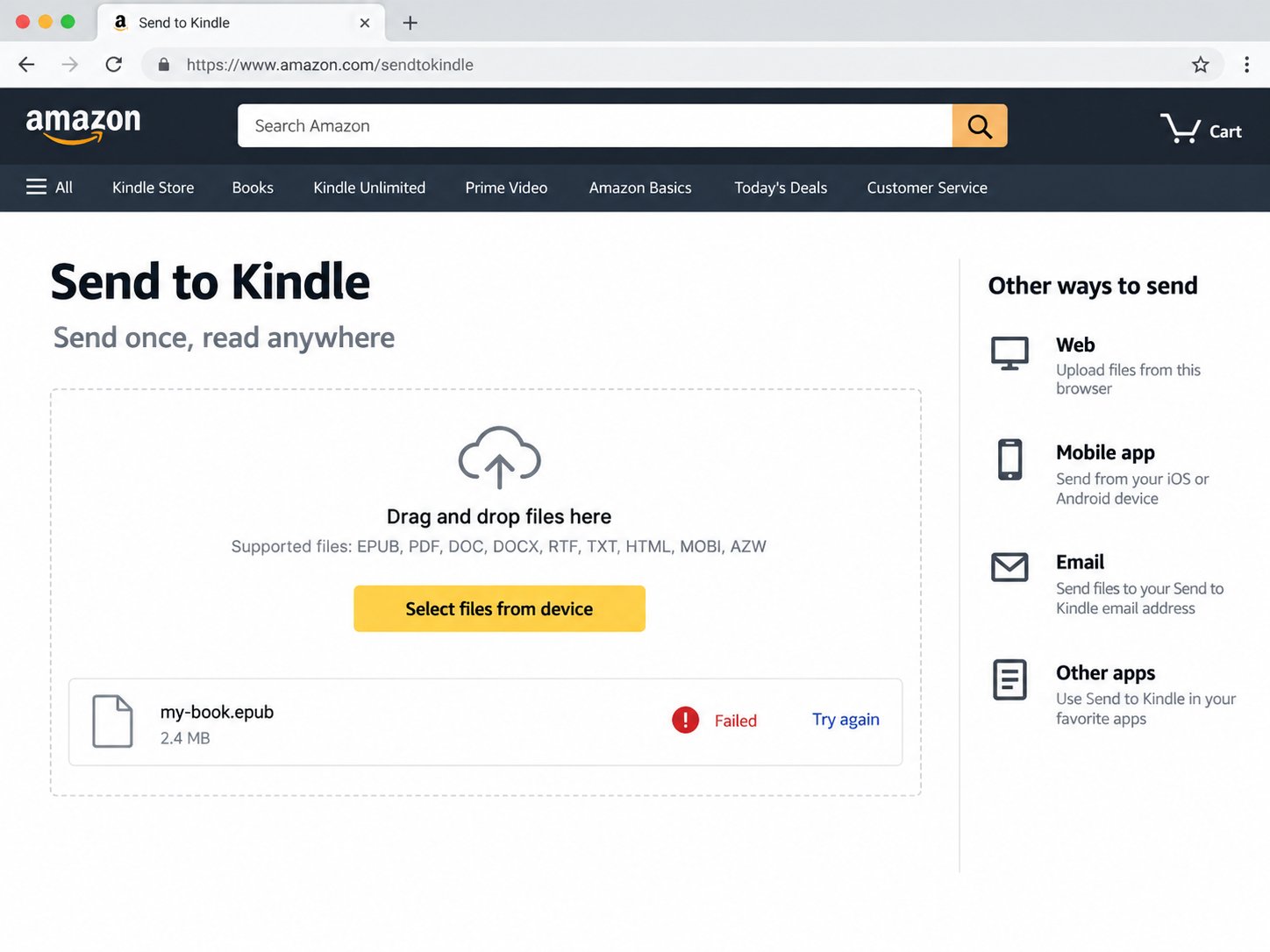
Do not treat this as proof that EPUB itself is unsupported. Amazon’s official Send to Kindle service accepts EPUB. The practical question is whether this particular EPUB is a complete, internally consistent package that its converter can read.
Check the container before the chapters
An EPUB is a ZIP container with rules. The first file should be an uncompressed mimetype entry containing application/epub+zip. The archive also needs META-INF/container.xml, which points to the package document. If that pointer is missing, has the wrong capitalization, or names a file that does not exist, processing can stop before Amazon reaches the book text.
Open the package document
The OPF package document declares metadata, resources and reading order. It must be well-formed XML. Unescaped ampersands, mismatched tags, invalid byte sequences and truncated files can make the entire package unreadable. Correct the first parser error before chasing later warnings; one malformed character can produce many secondary failures.
Compare the manifest with the archive
Every chapter, stylesheet, image, font and navigation file used by the publication should have a matching manifest item. Its href is resolved relative to the OPF location. Spaces, percent-encoding and letter case matter. A reference to Images/Cover.jpg will not reliably find images/cover.jpg.
Also compare each declared media type with the real resource. A JPEG declared as PNG or XHTML declared as plain text gives the converter conflicting instructions.
Verify the spine and navigation
The spine is the reading order. Every itemref must point to a real manifest ID. EPUB 3 publications should also identify a navigation document. An EPUB 2 navigation file may be present for older compatibility, but it cannot repair a missing chapter or a broken spine reference.
Look for encryption and unsupported packaging
FixMyEPUB is intended for DRM-free books you are allowed to modify. Encrypted content cannot be made valid by changing metadata. Likewise, renaming a ZIP file to .epub does not create an EPUB—the required container, package, manifest and reading order still have to exist.
Avoid repeated conversions. Converting EPUB to another format and back may hide the first error while introducing new CSS, navigation and metadata changes. Preserve the original and repair the smallest proven fault.
Retest without stale duplicates
- Make a copy of the original EPUB.
- Validate and repair the first structural error.
- Rebuild the ZIP in EPUB order.
- Open the output in a local reading app.
- Give the repaired copy a clear filename.
- Upload once and keep the exact result.
If the repaired EPUB passes structural checks but the service still fails, test a known-good small EPUB. When both fail, investigate the browser, account or service instead of editing the book again.
Turn the generic message into a diagnosis
FixMyEPUB checks the container, package, manifest, spine, XML resources and cover locally in your browser.
Diagnose my EPUB →