Library and sync checklist
Send to Kindle book not showing in your library?
Use these seven checks to find a missing personal document. Most cases come from the wrong account, library view, filter, title, connection, sync or an unfinished delivery—not a broken EPUB.
Quick answer
Send to Kindle says “In library,” but the book is missing?
Open the Kindle library, choose All instead of Downloaded, clear Book or Unread filters, search by the EPUB’s internal title or author, then sync on Wi-Fi. If it is still missing, confirm the uploader and device use the same Amazon account before resending.
Interactive check
Where is my Kindle book?
Answer three questions to identify whether you should repair the EPUB, check Amazon delivery, or refresh the device.
Start with the delivery result
If the web uploader or confirmation email says the file failed, the book is not waiting invisibly in the library—it was not delivered. Follow the rejection message and inspect the EPUB. If Amazon reports success, move on to account and library checks.
Confirm the Amazon account
The sending browser and receiving Kindle must use the same Amazon account. This is easy to miss on a shared computer, an older Kindle, or a device registered in another country marketplace. Check the registered account on the device and compare it with the account used for Send to Kindle.
Change the library view
Choose All, not only Downloaded. Clear filters for books, samples or unread items, because personal documents may appear under a different type. Search for the internal title or author, not only the filename. EPUB metadata can differ from the name of the uploaded file.
Sync on a stable connection
Connect to Wi-Fi, trigger a manual sync, and leave the library open long enough to refresh. If the item appears in the cloud but not on the device, tap it to download. Amazon’s own troubleshooting guidance recommends checking connectivity and syncing when content does not appear.
Check email-specific settings
If you sent the book by email, verify the destination Send-to-Kindle address and confirm that the sender is in your approved personal document email list. A typo, alias or unapproved sender can stop delivery before the document reaches conversion.
Give processing a clear window
Large or complex books can take longer to process than a short text-only EPUB. Do not create several duplicates while one copy is still processing. Keep the original confirmation, wait for the result, then test one controlled resend if necessary.
File repair is appropriate when: one EPUB repeatedly fails after upload while a known-good EPUB reaches the same account. If neither file appears, focus on the account, service or device first.
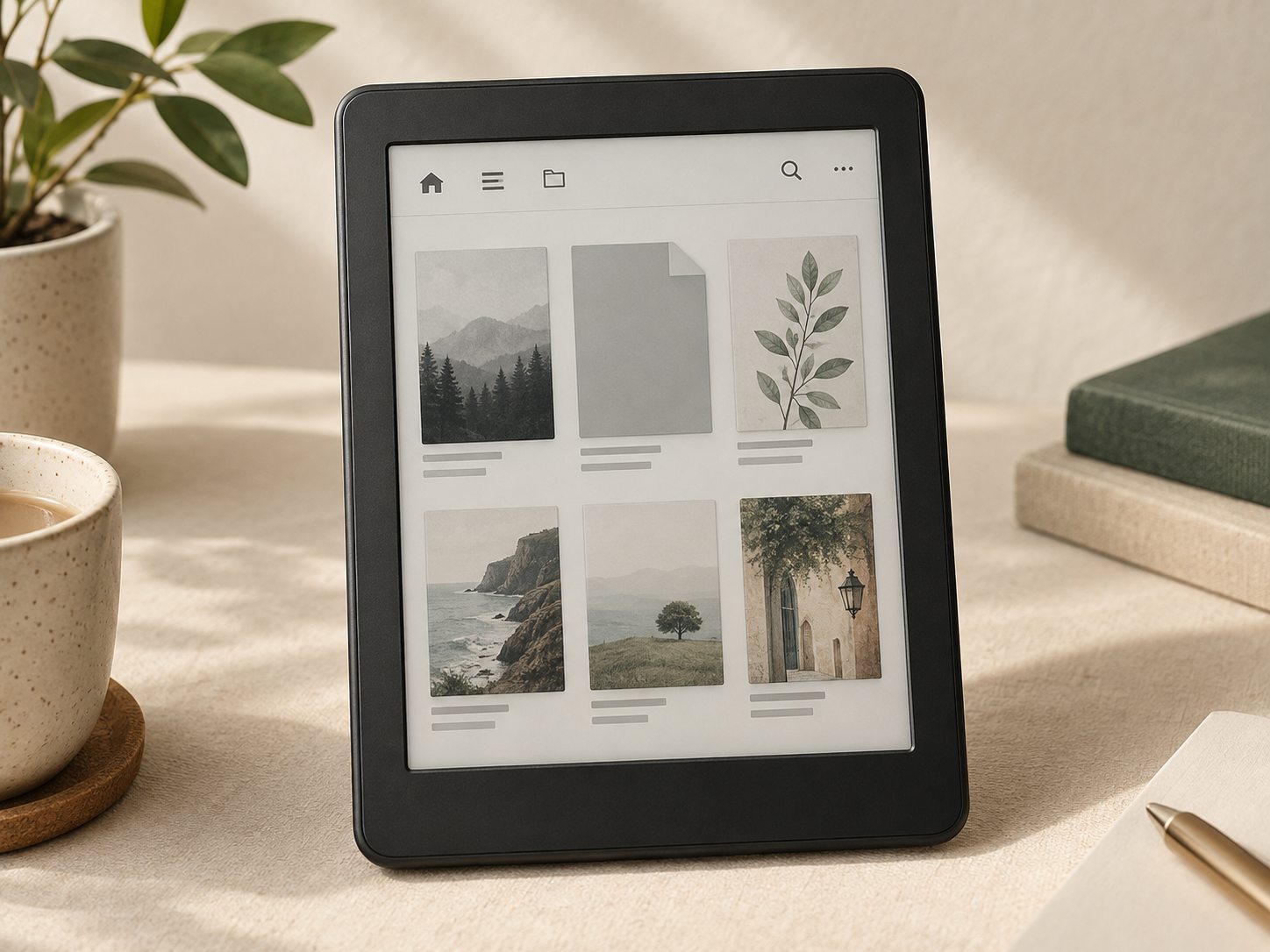
If the item appears with a wrong title or grey cover
The EPUB did arrive. Wrong title or author text points to package metadata. A grey cover points to the embedded image, its manifest entry, cover declaration or a cached thumbnail. Remove the old item before resending a repaired copy so you can distinguish the result.
A clean recovery sequence
- Confirm the upload result.
- Check the sending and receiving accounts.
- Switch the library to All and clear filters.
- Search by title and author.
- Connect, sync and check the cloud library.
- For email, verify both addresses.
- Only then validate or repair the EPUB.
Delivery failed for only this EPUB?
Check its cover, container, package, manifest and spine locally before sending another copy.
Check my EPUB →