Kindle library views
Kindle Library: All vs Downloaded
A delivered personal document can exist in your Amazon library without being stored on the current Kindle. The two views answer different questions.
Quick answer
What to do first
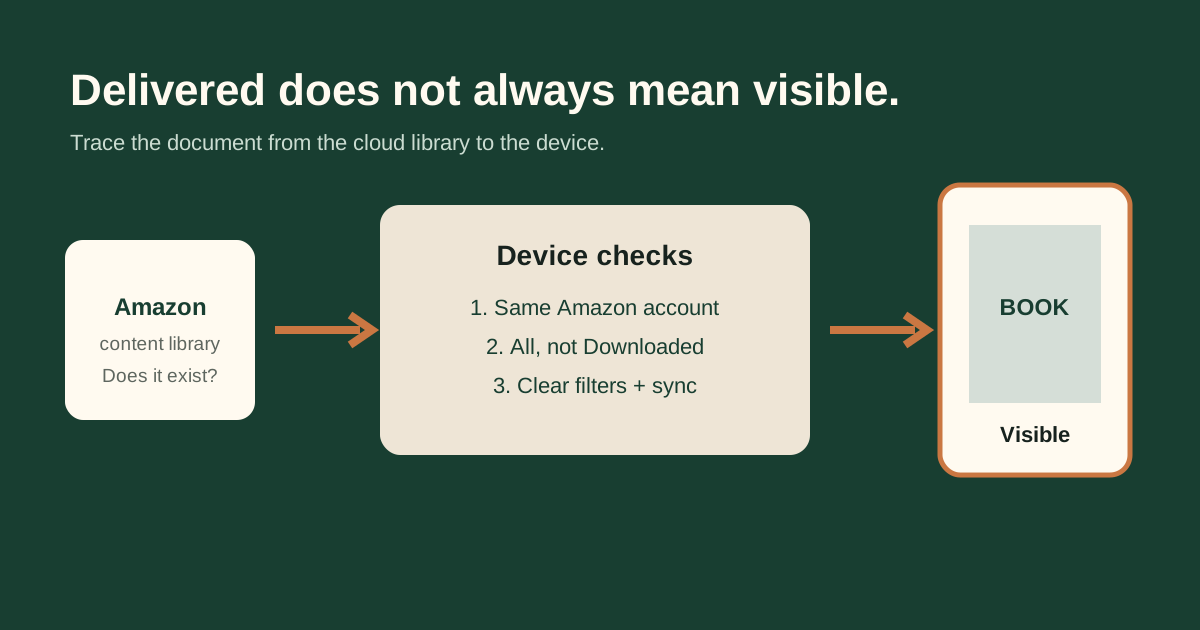
All shows compatible items associated with the account, including cloud items not downloaded to this device. Downloaded shows only items stored locally. If a sent EPUB is missing, switch to All, clear type and reading-status filters, then sync and search by its metadata title.
What the All view tells you
The All view is the broader inventory. It is useful for answering “did this item reach my Kindle account?” A cloud item may show a cover or document tile but still require a tap before its content is downloaded to the device.
What Downloaded tells you
Downloaded is a device-storage view. A document can be correctly delivered yet absent here because it has never been opened on this Kindle, was removed from local storage, or the device has not completed its latest sync.
Filters that make books disappear
Clear filters for Books, Documents, Unread, Samples and collections. Personal documents do not always behave like purchased Kindle books, and a filter that was useful yesterday can hide today’s upload.
Why the filename may not help
Send to Kindle can display the internal dc:title and author stored in the EPUB package. Search for those values, not only the uploaded filename. If the displayed title is wrong, repair the metadata before sending the next copy.
A clean test sequence
- Open All and sort by Recent.
- Clear every active filter.
- Connect to Wi-Fi and sync.
- Search title and author.
- Check the same account online.
- Only then resend one controlled copy.
Not sure which problem you have?
Answer five questions to separate an EPUB error from an Amazon account, service, email, library or device problem.
Run the troubleshooter →