Approved email delivery
How to email an EPUB to Kindle
Email delivery has two addresses that must agree: the personal Send-to-Kindle destination and an approved sender address.
Quick answer
What to do first
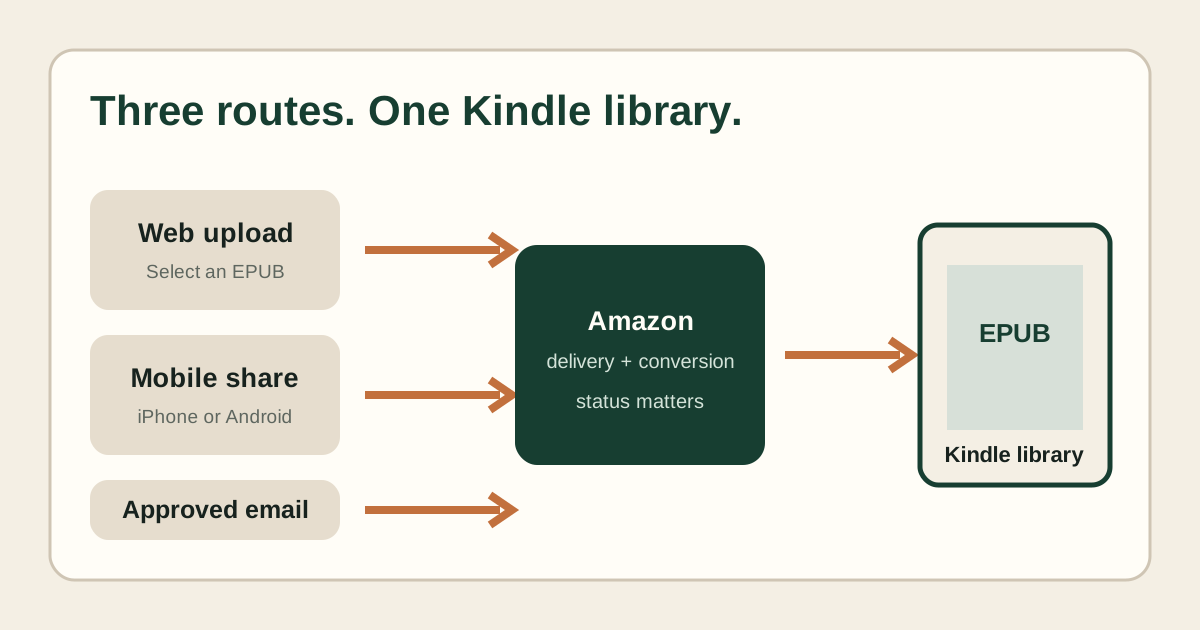
Find the destination address assigned to the Kindle or app, add your sending address to Amazon’s approved personal document list, attach the EPUB and send it from that exact address. Keep the delivery email, then check the Kindle library in All view and sync.
Find the destination address
Each compatible Kindle surface can have a Send-to-Kindle email address. Copy it from the Amazon account settings instead of typing it from memory. Check that the destination belongs to the same account as the Kindle you plan to use.
Approve the sender
Add the exact From address to the approved personal document email list. Aliases, forwarding services and a different work or personal account may look familiar while still being a different sender to Amazon.
Attach the EPUB cleanly
Attach the DRM-free EPUB as a file. Do not paste the book into the message body, rename a random ZIP to EPUB or bundle several uncertain files into one test. Use a simple subject so the delivery email is easy to identify.
Read the result email
A rejection or conversion message means the item was not delivered. A silent wait is not proof of success; check spam, the sending account and Amazon content library before sending duplicates.
Verify the library
On the Kindle, choose All, clear filters, connect to Wi-Fi and sync. Search the title and author stored inside the EPUB, which can differ from the attachment filename.
Not sure which problem you have?
Answer five questions to separate an EPUB error from an Amazon account, service, email, library or device problem.
Run the troubleshooter →