Email delivery failure
Email to Kindle not working?
Work through the address, approval and delivery path in order. Most email problems cannot be repaired by changing the EPUB first.
Quick answer
What to do first
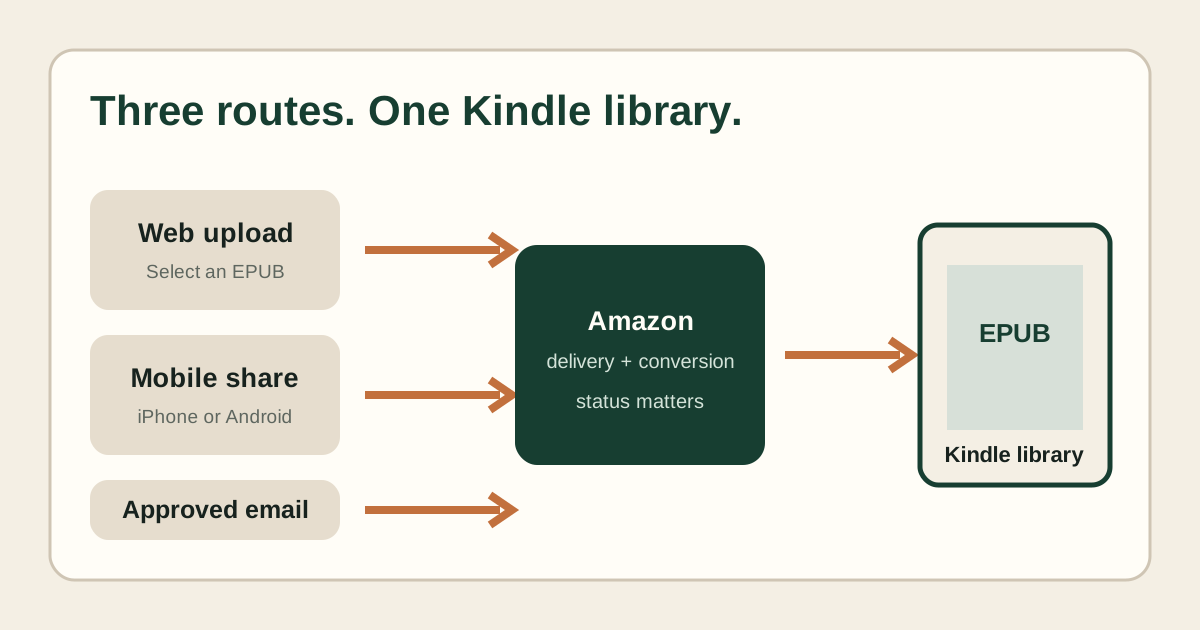
Verify the personal Kindle destination, send from the exact approved address, attach a supported DRM-free file and read any Amazon response. If several known-good files fail, investigate the account or route. If only one EPUB fails, inspect that file.
1. Confirm the destination
Copy the current Send-to-Kindle address from Amazon settings. Old addresses, typos and a destination assigned to another device or account can make a correct attachment irrelevant.
2. Match the approved sender exactly
The From address must match an entry in the approved list. Pay attention to aliases and forwarding. Send directly from the approved mailbox during troubleshooting.
3. Inspect the message and attachment
Attach the EPUB itself and keep the test simple. Confirm the extension and avoid password-protected archives or DRM-protected books. Amazon currently lists EPUB among supported wireless Send to Kindle file types.
4. Read Amazon’s response
A rejection email may distinguish address approval from document conversion. Keep the exact wording. If the message says the document could not be delivered, it is not waiting invisibly in the library.
5. Compare a known-good EPUB
Send one small EPUB that has worked before. If both fail, stop editing the target book and investigate the account or service. If the control succeeds, run the target through the local EPUB diagnosis.
6–8. Check processing, library and duplicates
Allow one attempt to finish, check the cloud content library, then switch the Kindle to All and sync. Delete obvious duplicates only after you know which copy arrived.
Not sure which problem you have?
Answer five questions to separate an EPUB error from an Amazon account, service, email, library or device problem.
Run the troubleshooter →