Free private browser tool
Kindle EPUB fixer for covers and delivery errors
FixMyEPUB checks the EPUB problems most likely to cause a grey cover or a failed Send to Kindle delivery. The book stays on your device, and every repair is written to a separate copy.
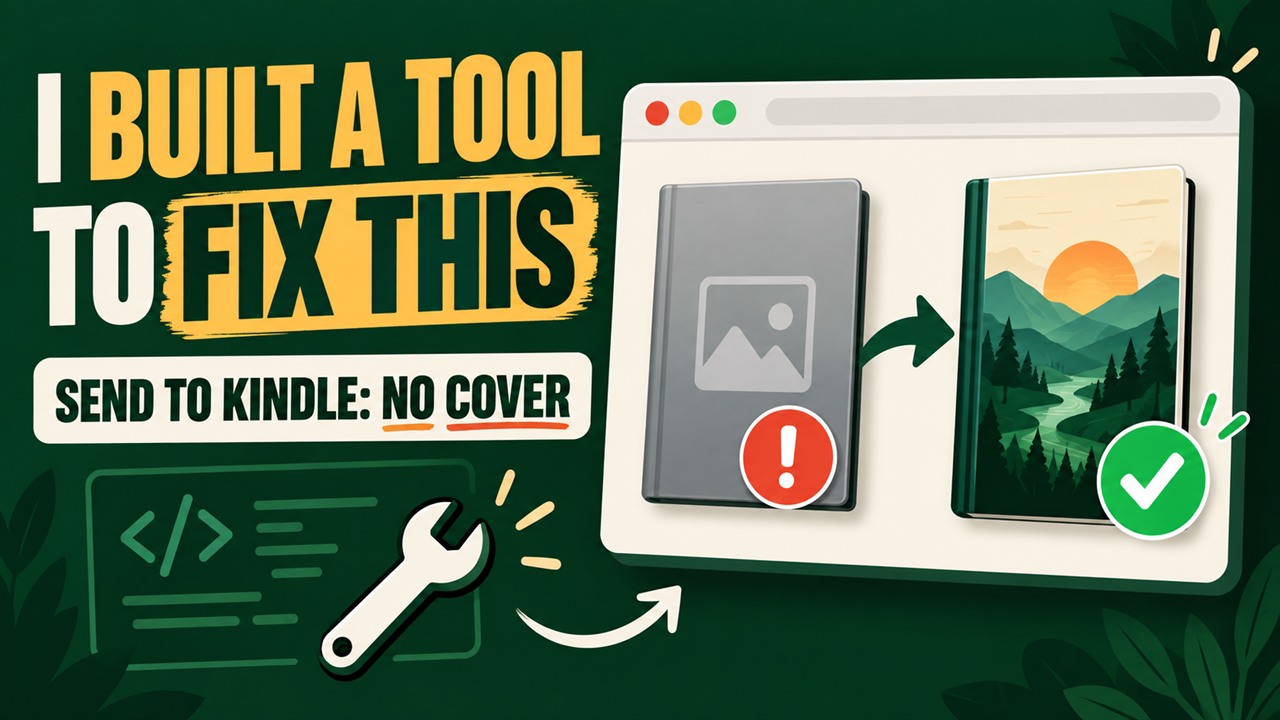 Watch the 57-second repair
Start here
Fix a Kindle EPUB in three steps
- Choose a DRM-free EPUB from your device.
- Read the cover and delivery diagnosis.
- Repair proven metadata problems and download a new copy.
What this Kindle EPUB fixer checks
An EPUB is a ZIP package containing XML, HTML, images and metadata. A reading app may forgive an incomplete reference that Amazon’s conversion system rejects. FixMyEPUB checks the container path, package metadata, manifest targets, spine references, XML readability, embedded cover artwork, image media type and both common cover declaration styles.
Fix EPUB cover metadata
EPUB 3 identifies the cover image with the cover-image property. EPUB 2 commonly uses a meta name="cover" reference to a manifest item ID. If the artwork exists but one or both declarations are missing, Kindle may render a generic grey document. The repair points both compatible declarations to one valid image without rewriting the book’s chapters.
For package examples, see the EPUB cover metadata guide and the technical cover reference.
Find Send to Kindle delivery blockers
If an upload finishes and then reports “Failed,” the likely cause is different from a browser connection problem. A missing package file, broken manifest target, invalid spine item, unreadable XML resource or incorrect container can prevent conversion even when the EPUB opens elsewhere.
Use the Send to Kindle decision tree to identify the failed stage, or read the EPUB rejection guide when Amazon accepts the upload but rejects delivery.
What the tool does not do
FixMyEPUB does not remove DRM, upload books to a server, access an Amazon account or guarantee how every Kindle firmware version caches thumbnails. It cannot repair account, service, Wi-Fi or library-filter problems. If Amazon says the item is in your library but you cannot see it, use the interactive Kindle library troubleshooter instead.
Privacy: the EPUB is opened, diagnosed and rebuilt by JavaScript in your browser. It is never sent to FixMyEPUB.
Before sending the repaired copy
- Open the downloaded EPUB in a local reading app.
- Remove the older personal document from the Kindle library.
- Allow the deletion to sync to the device.
- Upload the repaired copy once.
- Wait for Amazon’s processing result before trying again.
Diagnose your Kindle EPUB
Run the private check and repair only the problems the tool can prove.
Open FixMyEPUB →