iPhone and iPad
How to send an EPUB to Kindle from iPhone or iPad
Use the iOS share sheet to hand a DRM-free EPUB to the Kindle app, then verify that Amazon accepted it before looking for the book on your device.
Quick answer
What to do first
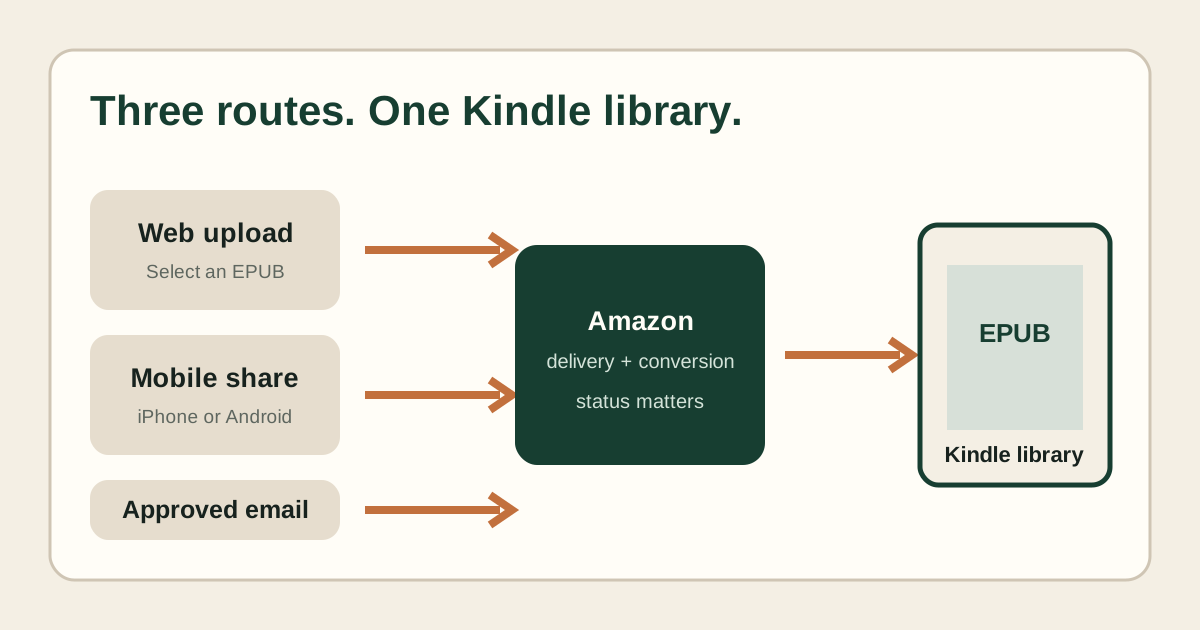
Save the EPUB in Files, tap Share, choose Kindle, review the title and author, enable Add to your library and send. Keep the result screen or confirmation, then open the Kindle library, choose All and sync. If Kindle is missing from Share, install or update the Kindle app and enable it under More.
Prepare the EPUB in Files
Download or save the EPUB to a location visible in the Files app. Confirm that it is an EPUB rather than a ZIP renamed with an .epub suffix. DRM-protected store books are outside this workflow.
Share the file to Kindle
- Long-press the EPUB in Files and choose Share.
- Select Kindle from the app row.
- Review the title and author shown by the Kindle share panel.
- Choose to add it to your library when you want it across registered devices.
- Send and keep the visible result.
If Kindle is missing from the share sheet
Swipe to the end of the app row, choose More and enable Kindle. If it is still absent, install or update the Kindle app, open it once, confirm the Amazon account and return to Files.
Verify delivery instead of tapping repeatedly
Wait for a clear success or failure. Multiple taps can create duplicate personal documents. On the receiving Kindle, switch to All, sort by Recent, sync on Wi-Fi and search by the title shown in the share panel.
When to inspect the EPUB
If other EPUBs send successfully from the same iPhone but one file fails repeatedly, diagnose that file’s package and metadata. If every file fails, focus on the app, account or Amazon service first.
Not sure which problem you have?
Answer five questions to separate an EPUB error from an Amazon account, service, email, library or device problem.
Run the troubleshooter →